
LAUNCH INTOLAUNCH INTO
BETTERBETTER
CONNECTIVITYCONNECTIVITY
Helping you get the most from your Gigaclear WiFiHelping you get the most from your Gigaclear WiFi

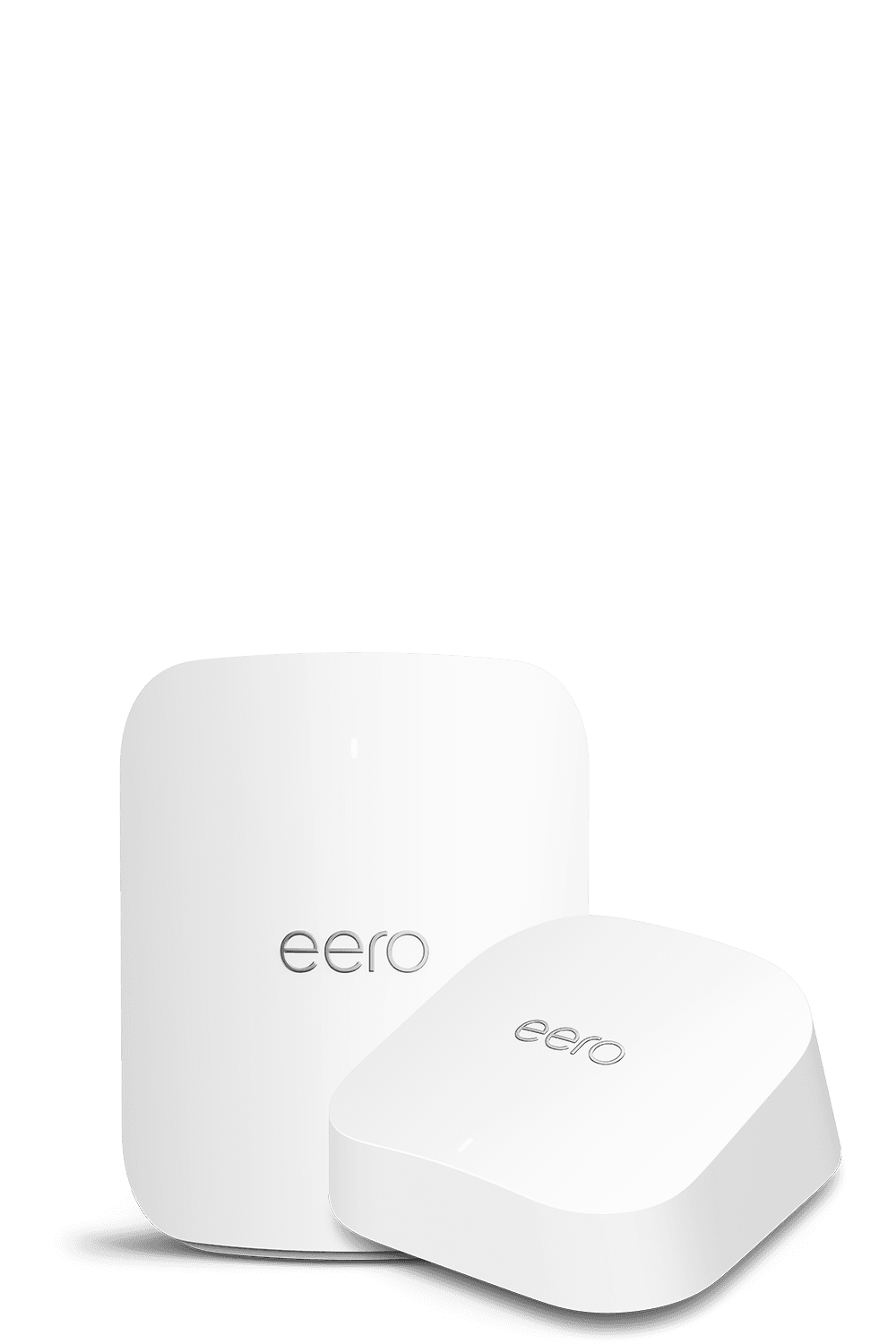
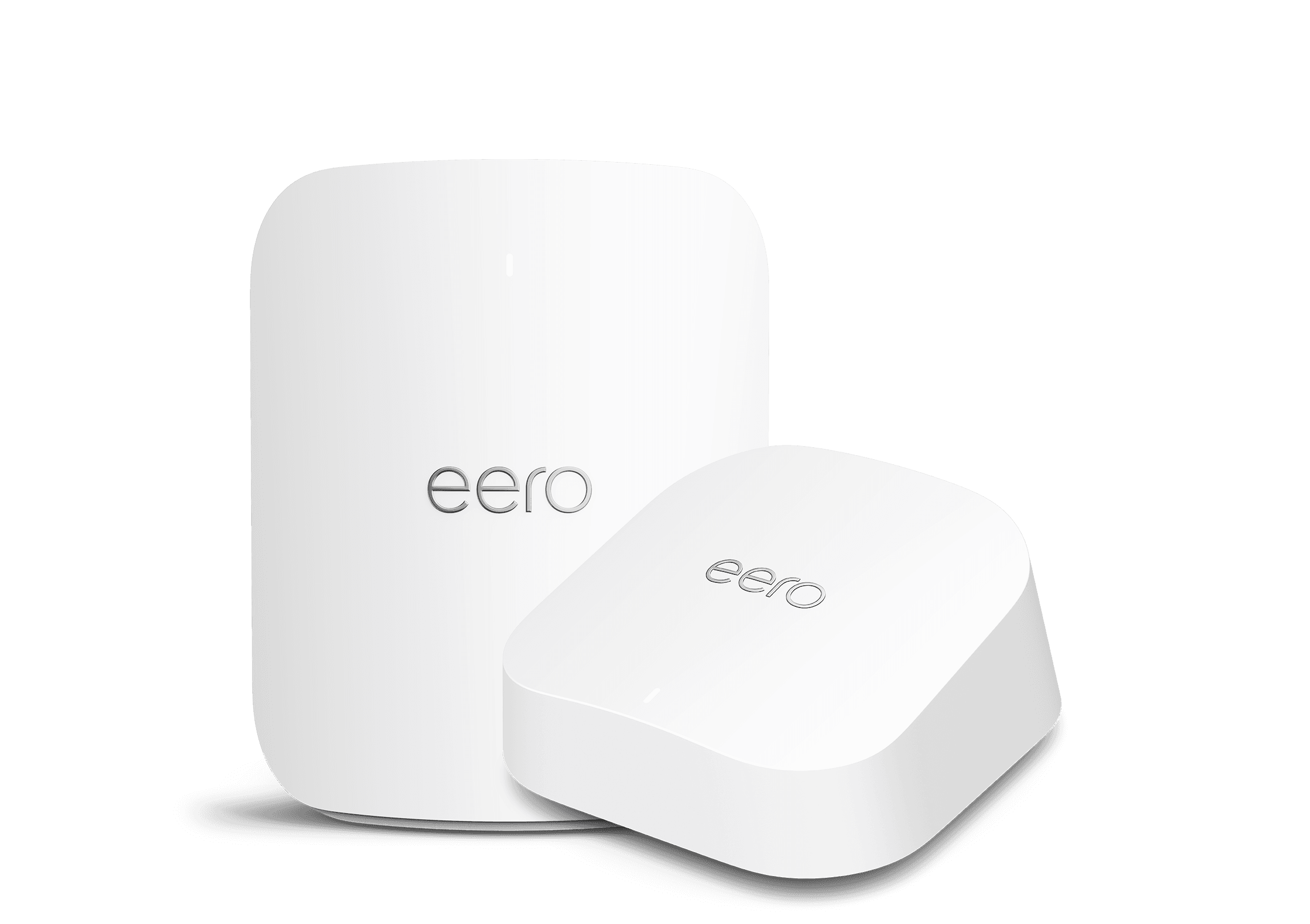
Before you get started, make sure you have:
- The eero app
- At least one eero device
- Pre-existing internet service or mobile data connection
- A Gigaclear wall mounted fibre box (ONT)
Download the app from your preferred app store and follow the account set-up instructions.
You’ll need an iOS or Android smartphone, your email address and mobile number. During the set-up process, you will need to accept eero’s terms and conditions.
Please note: If you don't have mobile data reception, call our Customer Service team on 01865 591 131
Please click here for support with creating an account
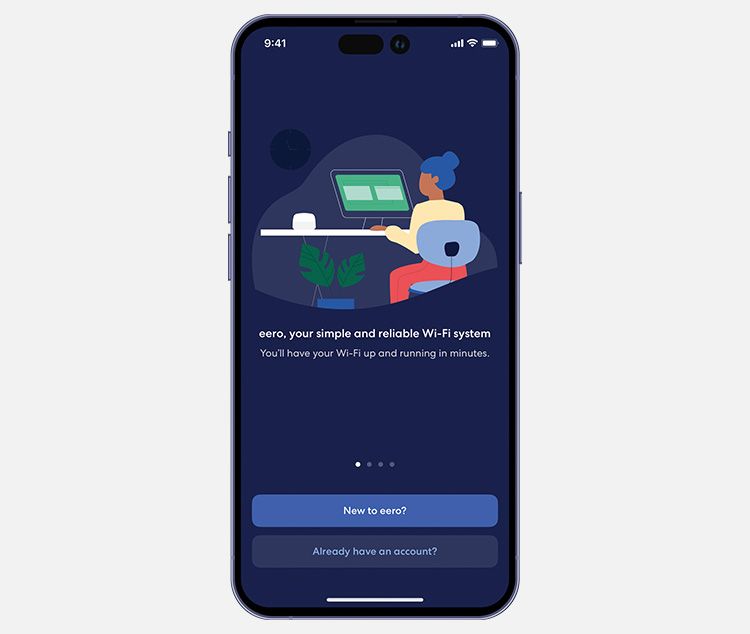
Download the eero app
Disconnect any existing equipment.
Plug the ethernet cable provided with your eero into the wall mounted fibre box port labelled either 1, LAN1 or 10GE.
Connect the other end of the ethernet cable into either ethernet port 1 or 2 on your eero.
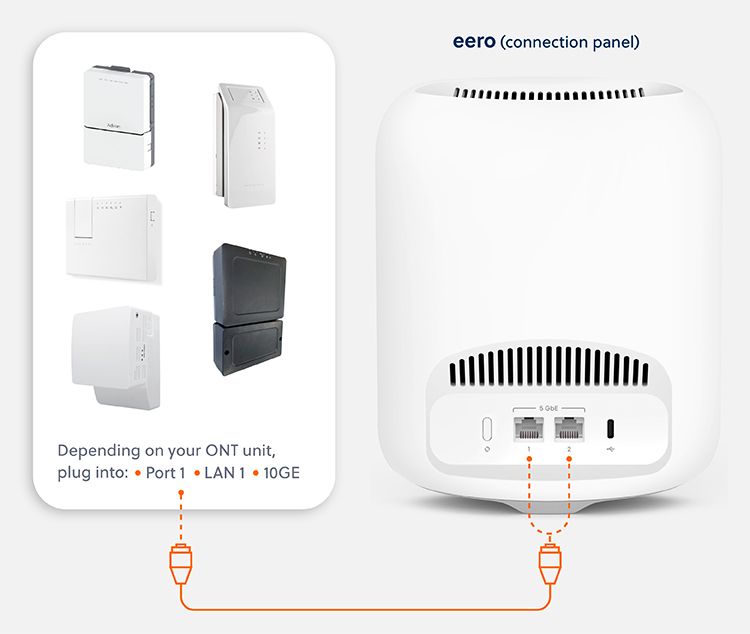
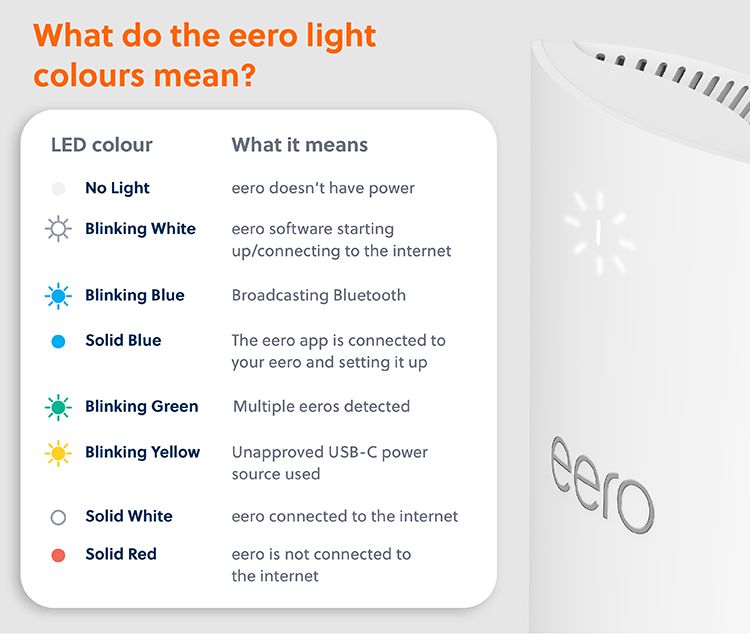
Connect the eero to a power socket using the cable provided and wait for the light to show solid blue.
Go back to the eero app and press 'Get started'
The app will display some screens asking you to connect your equipment. As you've already done this in step 3, select 'Next' to continue.
At the end of this section, the app will locate and configure your nearby eero automictically.
Please note: if prompted, allow access for the eero app to sue Bluetooth, as this is needed for setup.
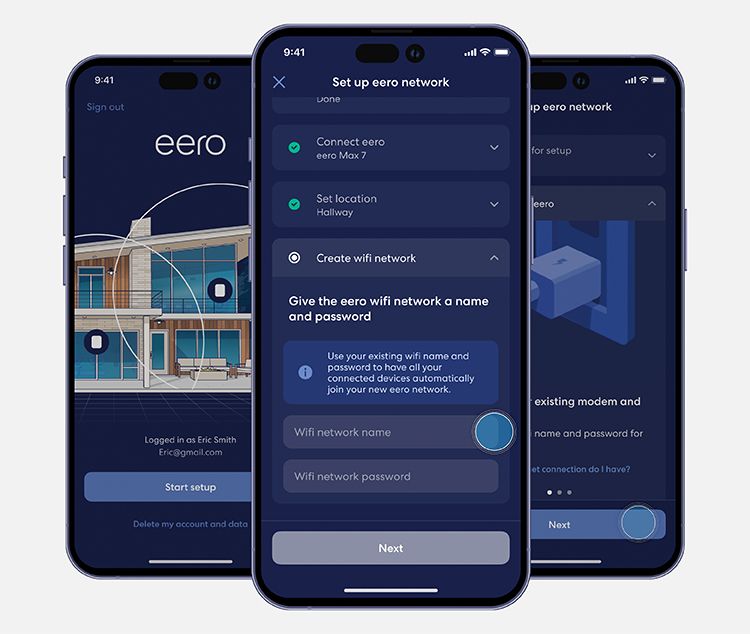
You will be asked to set a name.
TIP: You can use your pre-existing WiFi name (SSID) and password to ensure your devices connect to the new eero network automatically.
Your eero should now be set up. Select 'Finish setup' or 'Add another eero' (if you have additional eero WiFi nodes) to continue. The app will guide you through the set up and placement of the device.
An activation screen will pop up on your mobile device prompting you to fill in some details to activate your service. (You will recieve an email before your activation date with the information you need to activate your service).
If you have created a new WiFi name and password, you can start adding your devices to the network.
If you have used the same WiFi name and password your devices will automatically connect.
The eero app makes it simple to set up, manage and understand your home WiFi network. With just a few taps, you can see what's happening on your network and keep everything running smoothly.
What you can do with the eero app (included as standard with all Gigaclear broadband subscriptions)
- Set up your eero network quickly and easily
- View, set or change your network (WiFi) name or password
- Add extra eeros provided with our Smart WiFi service to extend coverage
- See all the devices connected to your WiFi
- Create profiles for people or groups in your home
- Pause WiFi for a device or profile whenever you need to
- Check WiFi Activity including data usage by device or profile
- Set up a guest WiFi network with its own name and password
- Run a speed test to your main eero router
- Troubleshoot issues with built-in tools
Even more features with eero Secure
Advanced security
Prevent accidental visits to known malicious sites and help protect connected devices.
Ad blocking
Improve your browsing experience by blocking a variety of ads.
Advanced parental controls
Set restrictions for designated devices based on age range (pre-k, pre-teen, teen, and adult) or content categories
eero internet backup
Connect to an alternate internet connection to keep the network up and running during an outage.
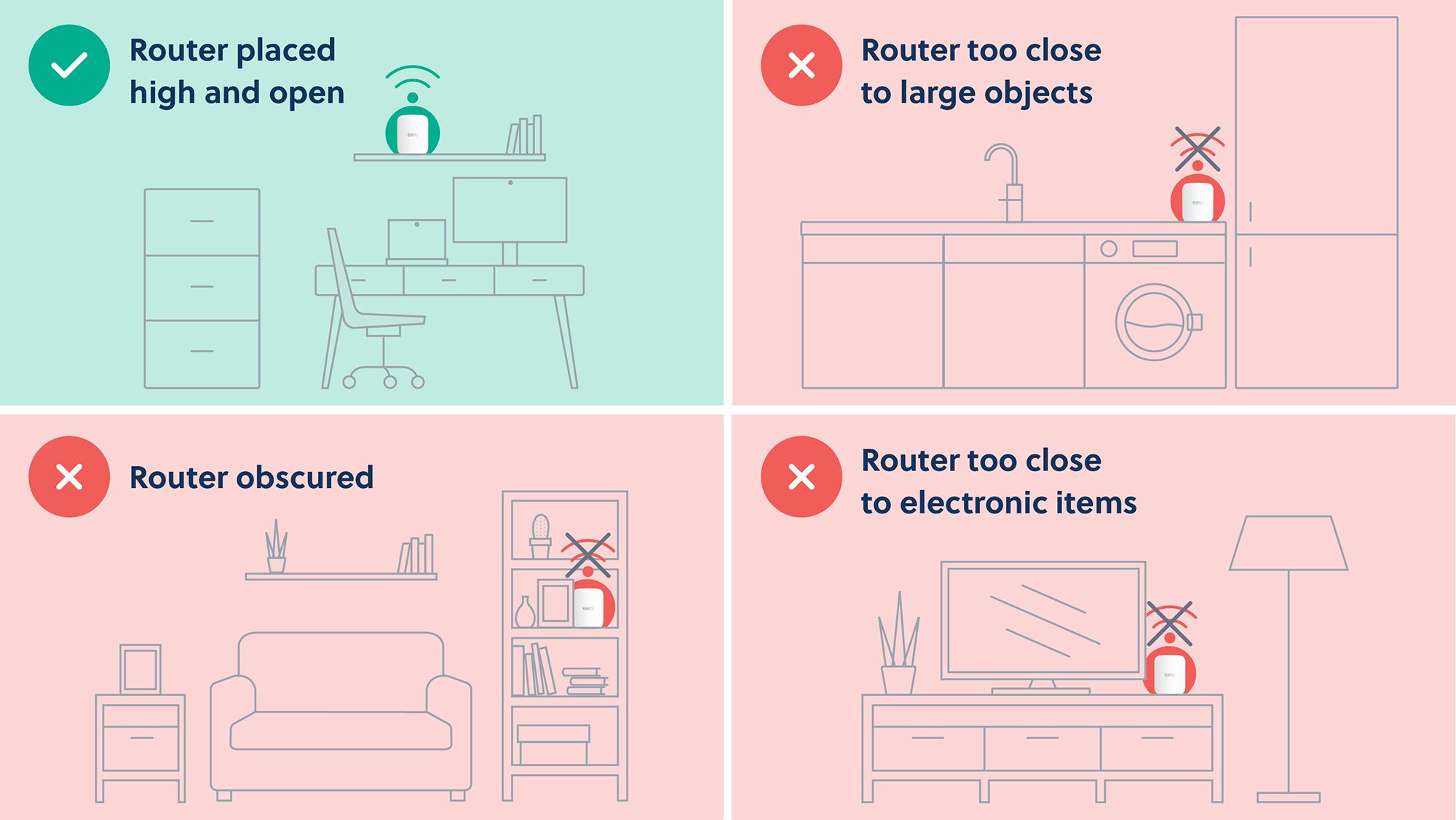
You may need to experiment with the location of your eeros to ensure optimal performance or add another eero if you notice dead spots in your home.
Thick internal walls, dense building materials, furniture, plumbing, water, and/or other electronics may interfere with your WiFi coverage and performance. Whenever possible, aim for a direct line of sight between eeros.
Houses with multiple floors or unusual layouts may need an eero on each floor or additional eeros to reach distant areas of the home.

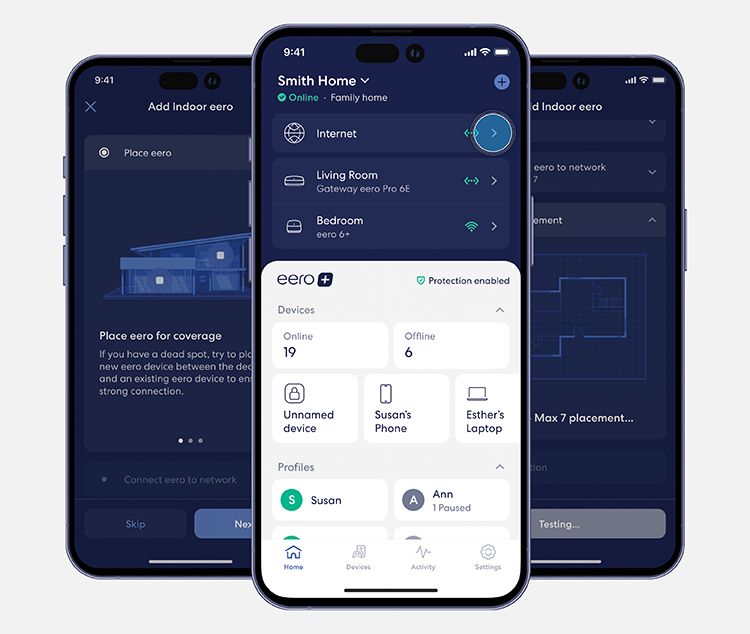
You can use the app to check the signal strength of the additional nodes.
Try moving the eero Smart WiFi node around until you have at least 3 green bars showing in the WiFi symbol, whilst eliminating any WiFi dead spots.
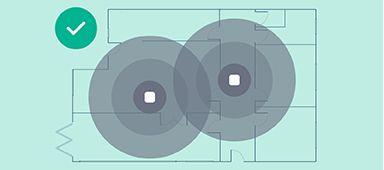
Ideal placement
eeros placed a distance where their coverage overlaps to form a strong WiFi 'bubble'
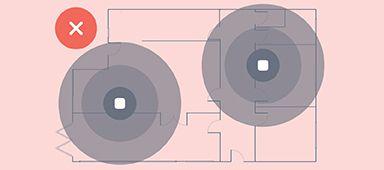
Too far apart
Place eeros too far apart, and the WiFi signal between them won't be strong enough
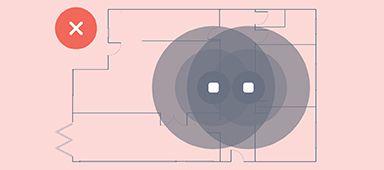
Too close
If too close, you risk the WiFi signal not reaching the further parts of your property.
Still need help?